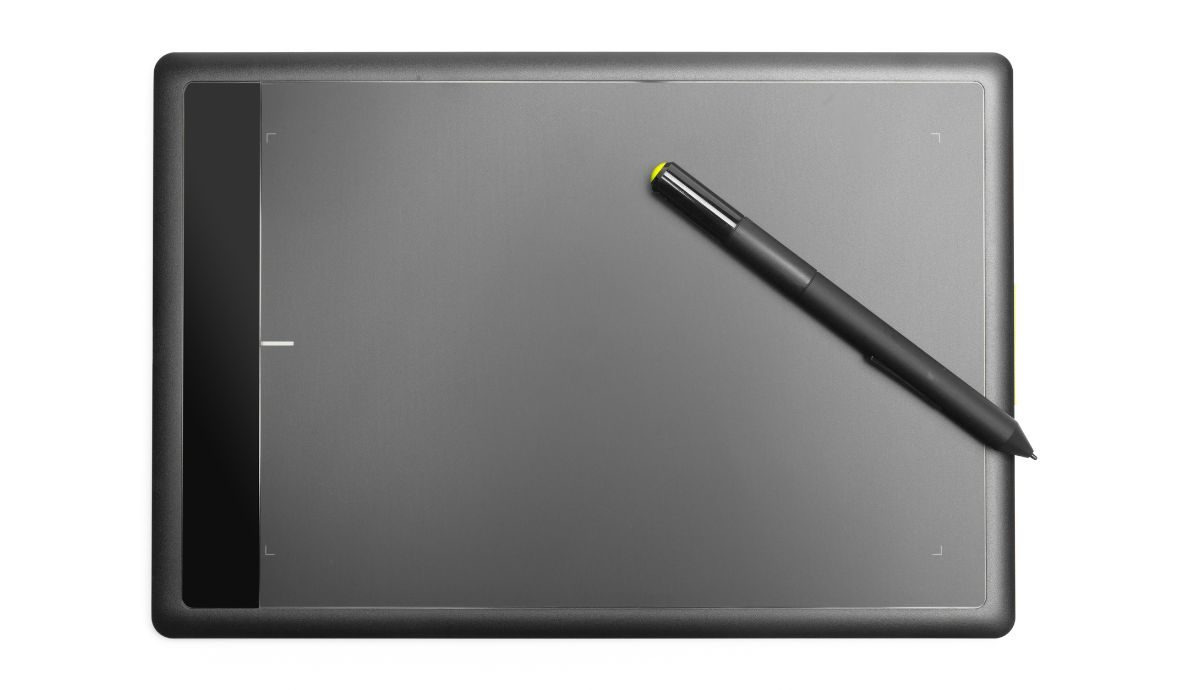
Chrome Canva,s is a drawing and note-taking application built within a web browser. Created by Google, it is fast and straightforward and allows users to brainstorm and annotate within the Google Chrome browser, and is free from the need to download complicated design software. Users can draw and sketch on the tool.
With the increase in remote working and digital classrooms, the need for visual aids has also risen. The demand has made Chrome Canva,s an easy-to-set-up drawing tool for educators, students, and all professionals requiring drawing tools.
In this guide, we talk about the plethora of features and benefits Chrome Canva,s has to offer. Also, we explain how it works and how it compares with other drawing tools.
What is Chrome Canvas?
Chrome Canva,s is a tool that allows freehand drawing with a stylus, touch screen, or mouse. Is a progressive web app built by Google that works directly with Chrome and is made to be optimize with Chromebooks, which makes it widely use in educational and professional environments. Chrome Canva,s is a drawing tool that will limit features to complexity and will emphasize speed and accessibility. It aims to provide users with the ability to draw or take handwritten notes. Users can also use the digital space to make visual notes that explain concepts.
Essential Characteristics of Chrome Canvas
1. Accessibility Using Any Browser
You can use Chrome Canva,s directly from the Chrome browser. No need for downloading big apps or worrying about operating system resources.
2. Touch and Stylus
Pressure sensitivity and touch gestures made for Chromebooks and tablets.
3. Varied Drawing Instruments
Users have the option of selecting from:
– Pen
– Pencil
– Marker
– Chalk
Each tool can be adjust for thickness and opacity.
4. Layering Features
It is easier to edit drawings without disturbing other components with the additional multiple layers.
5. Functionality Without Internet
When offline, Chrome Canva,s is especially important for travel, classrooms, and other places that have limited connectivity.
6. Google Account Auto-Save
All drawings sync with and auto-save to the Google account associated with Chrome Canva,s.
Utilization of Chrome Canvas
Step 1: Launch Chrome Canvas.
Use Google Chrome to go to the Canva,s page.
Step 2: Open a New Drawing
A blank canvas will be open after clicking on New Drawing.
Step 3: Choose Tools and Colors
Adjust the tool thickness and color selection from the palette.
Step 4: Incorporate Layers
Make different layers for sketches and for text or annotations.
Step 5: Save or Export
Drawings are save due to the auto-save feature; however, you can export your drawings as PNG files.
Why Use Chrome Canvas
Quick and easy
Chrome Canva,s is create for someone who values their time and does not want to go through a time-consuming learning set to use the software.
Free to Everyone
No paying for memberships, licenses, or any other hidden fees.
Very accommodating for educational use
Teachers and students have the ability to create diagrams, solve math problems, and even send notes and visuals to explain things.
Works on any device
Your drawings stay with you on any device, as long as you are logge in to the same Google account.
Works on any device
Your drawings stay with you on any device, as long as you are logge in to the same Google account.
Chrome Canvas for Students and Teachers
Chrome Canva,s is the most popular option in the education sector for its ease-of-use and compatibility with Chromebooks.
Typical Uses in Education:
Visual representations of how to solve math problems
Creation of diagrams for science
That helps with making diagrams.
Taking notes in a digital format
Brainstorming ideas
Visual annotations on images
During remote learning, teachers can easily provide students with notes or diagrams, and students can turn in their assignments in a digital, handwritten format.
Chrome Canvas for Professionals
Professionals all over the spectrum use Chrome Canva,s for:
Sketching wireframes
Creating diagrams for workflows
Sketching ideas
Designing UI/UX
Taking meeting notes
More often than not, the work is fast-paced, and being able to open the software and have things saved is helpful.
Chrome Canvas and Other Drawing Tools
Chrome Canvas vs Microsoft Paint
1.Chrome Canva,s supports cloud syncing and layers, giving it a more modern and flexible design.
Chrome Canvas vs Adobe Illustrator
2.Chrome Canva,s is designed for quick sketches and basic drawings, whereas Adobe Illustrator is a complete professional vector design tool.
Chrome Canvas vs Notability or OneNote
3.Chrome Canva,s focuses on drawing.
Is Chrome Canvas Safe and Secure?
Yes. Chrome Canva,s is a Google product and uses standard Google safety and security protocols. All drawings are saved to your Google account, ensuring your data is safe and backed up in the cloud.
Limitations of Chrome Canvas
Though powerful in its simplicity, Chrome Canvas does come with limitations:
No advanced vector tools
Limited export formats
No drawing text tool
Not suitable for complex graphic design
Despite these limitations, they help maintain a focus on speed and usability.
How to Get the Most From Chrome Canvas
Organize complex sketches using layers.
For detailed drawings, zoom in.
Try using a stylus for more precise drawings.
To prevent loss of work, remember to export drawings as backups.
How Chrome Canvas May Evolve
Chrome Canvas may benefit from advancements in other browser-based productivity apps, such as higher performance, ,better stylus precision, and more seamless interapp integration, as its use in remote work and education grows.
Conclusion
With its browser-based workflow, Chrome Canva,s is a powerful drawing application that is a perfect match. It is helpful for students, teachers, designers, and professionals. Canvas is a great way to make a visual representation of your concepts quickly and for free.
Quick digital drawings can be created without complicated steps, and Google account integration, offline access, and simple design make it accessible to all users.
About the Author